

Events
Events are activities organized by an organization that volunteers can register for.
Event lifecycle
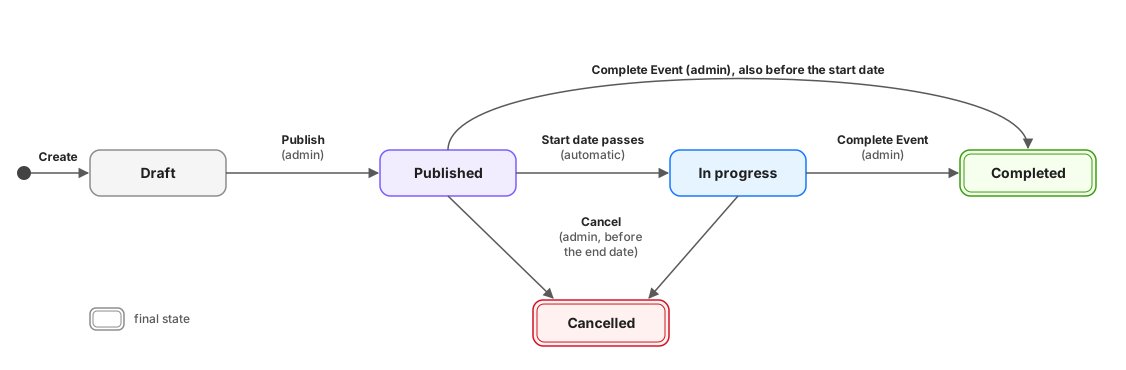
Click the diagram to open it full size.
| Status | How it's reached | What it means |
|---|---|---|
| Draft | An admin or coordinator creates the event | Only the organization's admins and coordinators can see it; for anyone else its link shows "not found" |
| Published | An admin clicks Publish on a draft, before its end date | Listed on the events page and in search; volunteers can register |
| In progress | Automatically, at midnight after the start date has passed | Still listed, but registrations are closed |
| Completed | An admin clicks Complete Event on a published or in-progress event (also after the end date) | Final. Certificates and evaluations become available (see below) |
| Cancelled | An admin clicks Cancel on a published or in-progress event, before its end date | Final. Removed from the events page and search; only the organization and the volunteers who registered can still open it, and they're notified |
Only these moves are possible: a draft can't be completed or cancelled, and a completed or cancelled event can't be published again. The Manage view shows only the actions that apply to the event's current status, and only to the organization's admins.
Completing an event
Admins can mark an event as completed from the Manage view by clicking Complete Event and confirming. This action:
- Closes any open timesheet sessions (setting their check-out to end-of-day and marking them
pendingfor review) - Promotes all
approvedregistrations toattended, making volunteers eligible to download their certificate - Makes the status final: the event can't be published or cancelled afterwards
Use Cancel Event instead if the event did not take place.
Once an event has ended
Once an event's end date has passed, the platform locks it down to prevent changes to something that already happened. Editing details, publishing, cancelling, reviewing or withdrawing registrations, assigning teams or shifts, creating/editing/deleting teams or shifts, and starting new QR check-ins or manual hour entries are all blocked.
The only actions that remain available after the end date are:
- Complete Event, so organizers can still finalize an event they forgot to close on time
- Reviewing and validating already-submitted timesheet sessions
- Evaluating attended volunteers
- Certificate generation (which in fact only becomes available after the event has ended)
Browsing the events list
The Events list shows 20 events per page, with the pagination controls and the range you're seeing ("Showing 21–40 of 87 events") at the bottom. The page, the Upcoming/Ongoing/Past filter, the county and your search are all part of the page's address, so refreshing, going back, or sharing the link shows the same results. Changing a filter or the search starts again from the first page.
Browsing events without an account
The events list and an event's page can be viewed without signing in — useful for sharing a link to an event before someone has created an account. A signed-out visitor sees a simplified page instead of the full app, and in place of a Register button gets a Sign in to register prompt that leads to sign-up/sign-in.
Registering for an event
- Open an organization and go to Events.
- Click an event to view its details.
- Click Register — you will be added to the attendee list.
You can cancel your registration before the event starts from the same page.
If the event has a registration deadline and it has already passed, you will be placed directly on the waitlist instead of pending review.
Minors (15–17): If your profile includes a date of birth that puts you between 15 and 18, your registration enters a Parental Consent Pending state. See Parental consent for minors below. Volunteers under 15 cannot register.
Parental consent for minors
Romanian law sets 15 as the minimum age to volunteer and requires explicit parental or guardian consent for minors up to 18. Zelo enforces this automatically: if your profile shows you're under 15, the Register button on the event page is disabled with an explanation, and the platform also rejects the registration outright if it's attempted another way.
If you are between 15 and 18:
- Set your date of birth in Profile → Personal Details — this allows the system to detect your age at registration. Pick it from the calendar or type it day first —
DD/MM/YYYYin English (e.g.09/07/1968),ZZ.LL.AAAAin Romanian (e.g.09.07.1968). - When you register for an event, your status is set to Parental Consent Pending instead of Pending.
- From My Events, click Download Parental Consent Form to get a pre-filled PDF (Anexă Acord Parental).
- Print the form, have a parent or legal guardian sign it, and bring the signed copy to the event.
- The on-site coordinator will check the form and click Verify Physical Consent, which immediately approves your registration.
No personal data from the form is stored on the platform — signatures and guardian information remain on the physical document only.
Managing registrations
Coordinators and admins can review registrations from the event's Manage → Registrations tab. The list updates live — new registrations appear without a page reload.
Teams and shifts within events
Some events have structured teams. After registering, an admin may assign you to a team.
Your team and any assigned shift(s) show up on your My Events card for that event, alongside a running total of your validated hours for it (once the organization has documents/tracking enabled).
For events that need time-boxed coverage, admins and coordinators can enable Shifts (from event creation, or later from Manage → Details) and then define shifts (start/end time, optional name, optional capacity) from the Manage → Teams & Shifts tab, where each shift is shown nested under its team (or listed separately if it isn't tied to one). Since the event's dates are already known, creating a shift only asks for a start/end time of day — for an event that runs over several days, you also pick which day(s) it applies to (a toggle per day), creating one shift per day picked in a single go; single-day events skip that step. If the event has teams, every shift must belong to one of them — there's no event-wide shift once teams exist, so volunteers can only be assigned to shifts open to their own team. If the event has no teams, shifts simply apply to the whole event. Once you're approved for an event with shifts, an admin or coordinator can assign you to one or more shifts from the Manage → Registrations tab — you can't be double-booked into two shifts that start on the same day.
Coordinators can also click Auto-distribute to have the platform assign all approved, unassigned volunteers to open shifts automatically, based on your saved availability and, if the event has skill requirements, how well your skills match (and, for team-restricted shifts, whether you're on that team). Volunteers who can't be placed (no matching availability, all shifts full, or no shifts open to their team) are reported back so a coordinator can follow up manually.
Batch certificate generation
After an event is completed and Event documents & tracking is enabled, coordinators and admins can generate certificates for all eligible volunteers at once from Manage → Registrations:
- Click Generate Certificates — the platform queues a generation job and shows a progress bar.
- Once all certificates are ready, the button reappears and a ZIP file containing all PDFs downloads automatically.
- To abort mid-run, click Cancel — any PDFs already generated are discarded.
Eligible volunteers are those with an attended status and at least one validated timesheet session.
Downloading evaluation sheets (admin)
When Event documents & tracking is enabled for an event, a Download Evaluation Sheet button appears in the Manage → Registrations action column for each attended volunteer. Clicking it generates and downloads that volunteer's Fișa de Evaluare PDF immediately — no batch mode, one per volunteer.
Volunteers can also download their own evaluation sheet from My Events once their registration is marked as attended.
Feedback
After an event ends, you may receive a prompt to leave feedback. Feedback helps organizers improve future events.